






TL;DR:
The txt file controls crawling (who can request pages); noindex controls indexing (what appears in search results)—they're not interchangeable methods
Never use the file for security or privacy—it's a publicly visible file that broadcasts sensitive paths; use proper authentication instead
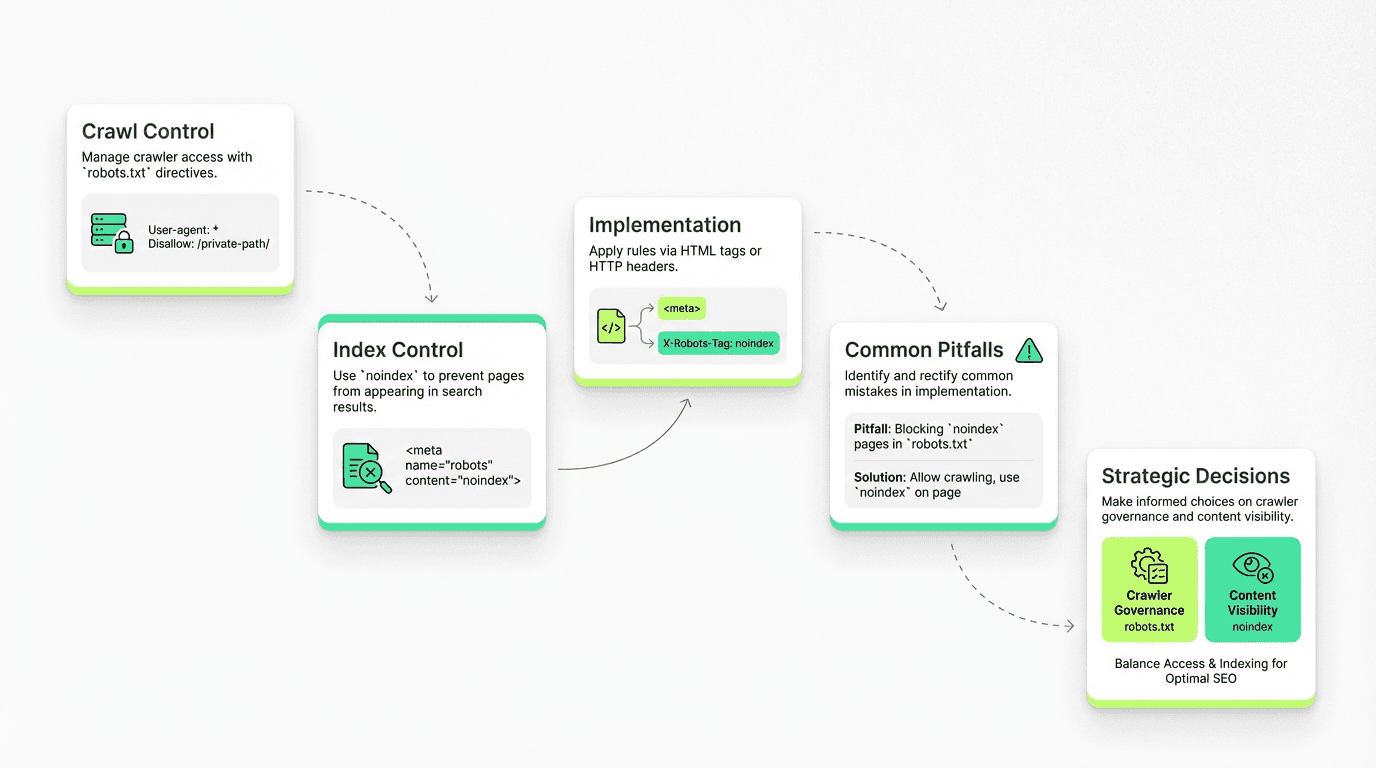
Disallow vs noindex decision: Use disallow for budget control on low-value URLs; use noindex when you want content crawled but not indexed
If a page is already indexed, don't just add a disallow—Google can't re-crawl to see removal requests; temporarily unblock, add noindex, then re-block
New crawlers (GPTBot, PerplexityBot, ClaudeBot) require governance decisions: block training crawlers, allow citation engines selectively, or accept defaults
Implement via three methods: HTML meta tag (``), X-Robots-Tag HTTP header, or bot-specific conditional tags
Common mistakes: blocking before adding noindex, wrong file location (must be at domain root), syntax errors breaking parsing, not verifying in Google Search Console
Tactical workflow: Write rules → add xml sitemap directive → implement noindex tags → verify in Search Console → monitor crawl stats and index coverage
Modern complexity demands automation: Managing files across multiple domains/subdomains with crawler policies is tedious—agent-based auditing and policy enforcement reclaims strategic bandwidth
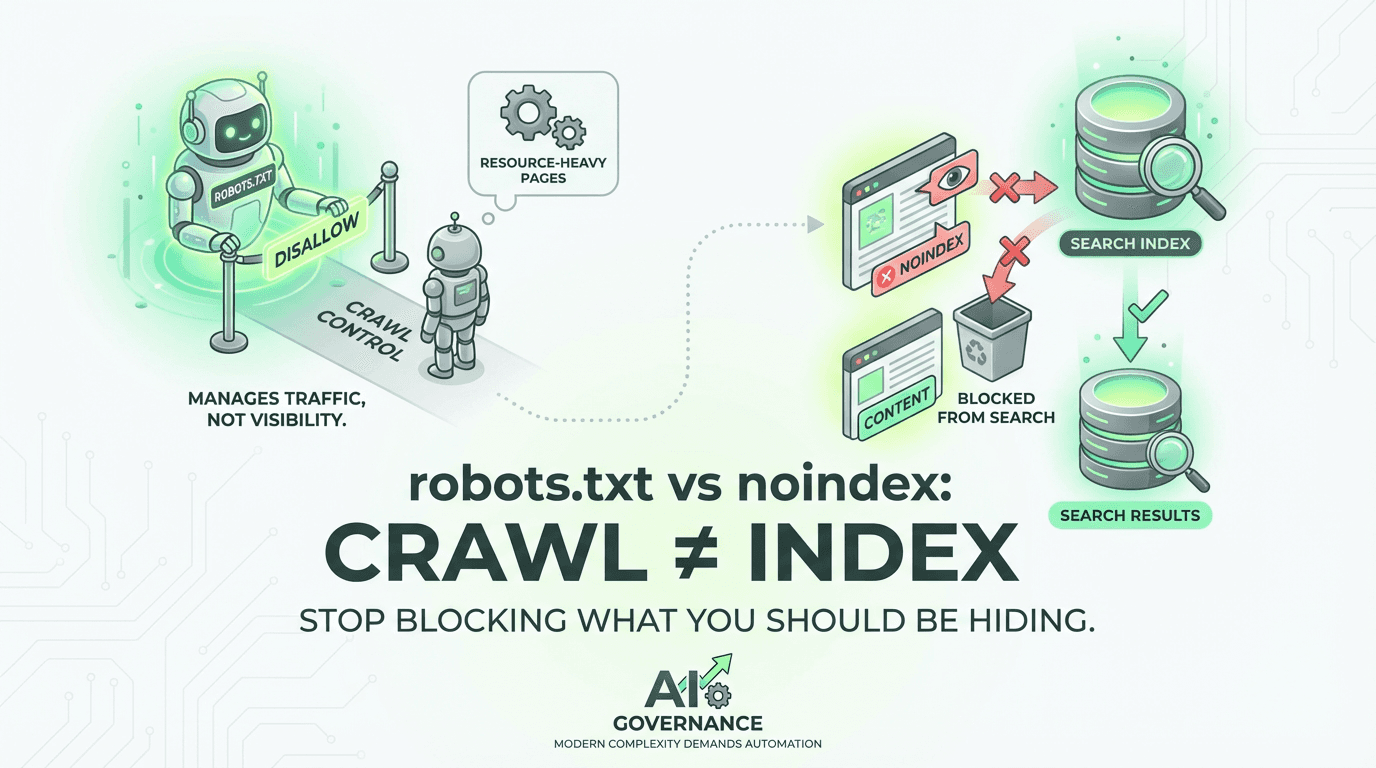
If you've ever accidentally de-indexed your entire site with a single line in a robots.txt file, you're not alone. The confusion between crawl control and index control has cost teams rankings, traffic, and countless hours of troubleshooting. Here's the truth: the robots.txt file manages crawler traffic; noindex prevents indexing. They're not interchangeable, and misusing a txt file as an indexing tool can lead to unwanted pages appearing in search results—or worse, blocking Google from rendering critical content.
This guide will teach you the right controls with tested examples, a troubleshooting checklist, and the emerging challenge of crawler governance. By the end, you'll know exactly when to use a robots txt file, when to deploy noindex tags, and how to avoid the most common pitfalls that trip up even experienced SEO professionals.
Understanding the Core Difference: Crawl vs Index
Before diving into syntax and examples, let's establish the fundamental distinction that causes most of the confusion.

What robots.txt Actually Does
The txt file is a crawl control mechanism. It lives at your domain root (`https://example.com/robots.txt`) and tells search engine crawlers which parts of your site they're allowed to request. Think of it as a velvet rope at a nightclub—it controls who gets in and where they can go, but it doesn't control what people say about the venue outside.
When you disallow a URL in a robots txt file, you're telling search engines and bots: "Don't waste resources fetching this page." This is crucial for crawl budget management—ensuring Googlebot spends its limited crawl capacity on your most important pages rather than infinite filter combinations, session IDs, or admin panels. Teams using an ai marketing automation platform should pay close attention to these crawl budget rules to maximize organic performance.
What noindex Actually Does
The meta robots noindex directive, on the other hand, is an indexing control. It tells search engines: "You can crawl this page, read its content, and follow its links—but don't add it to your search index." It's the difference between visiting a page and putting it in your database.
The noindex directive can be implemented three ways:
HTML meta tag: ``
HTTP response header (X-Robots-Tag): `X-Robots-Tag: noindex`
Robots meta tag with additional directives: ``
The critical insight: Googlebot must be able to crawl a page to see your noindex directive. If you block a page in the txt file, Google can't read the noindex tag, and the page may still appear in search results with a generic snippet like "A description for this result is not available because of this site's robots.txt."
The Fatal Mistake: Using robots.txt for Security or Privacy
Here's a scenario that plays out dozens of times every day: A developer wants to keep staging environments, customer portals, or sensitive documents out of Google. They add a disallow rule to the file and consider the problem solved.

This is not security. The robots txt file is a publicly accessible file that essentially broadcasts: "Here are all the URLs I don't want you to see." Malicious actors routinely check these files to discover hidden admin panels, API endpoints, and other sensitive paths.
The Right Approach for Different Scenarios
For truly sensitive content: Use proper authentication (password protection, IP restrictions, or login requirements). No txt file or meta tag can substitute for real access control.
For content you want crawled but not indexed: Use noindex. This includes thin pages, duplicate content, thank-you pages, and internal search results that would dilute your site's quality signals.
For resource-heavy web pages that waste crawl budget: Use disallow rules. This includes infinite scroll pagination, faceted navigation with thousands of filter combinations, and dynamically generated URLs with session parameters.
robots.txt Example: Structure and Syntax
Let's build a proper file from scratch, incorporating best practices and common use cases.
Breaking Down the Syntax
User agent declarations: Each `User-agent:` line starts a new rule block. The asterisk (`*`) is a wildcard matching all bots. Specific bot names override the wildcard rules for that particular crawler.
Disallow patterns: The path after `Disallow:` tells bots not to crawl matching URLs. Wildcards are supported: `*` matches any sequence, `$` matches end of URL. These rules help you control which pages and resources the bot can access.
Allow exceptions: The `Allow:` directive creates exceptions to disallow rules. In the example above, `/admin/public-resources/` is allowed even though the `/admin/` directory is generally blocked.
Sitemap directive: The robots.txt sitemap directive tells crawlers where to find your XML sitemaps. You can list multiple sitemaps, and this is one of the fastest ways to get new content discovered, especially for sites leveraging ai powered workflows to scale content.
File location rules: The file must live at the root of your domain or subdomain. `https://example.com/robots.txt` works; `https://example.com/blog/robots.txt` does not. Each subdomain needs its own file.
Disallow vs noindex: When to Use Each
The disallow vs noindex decision comes down to a simple flowchart:
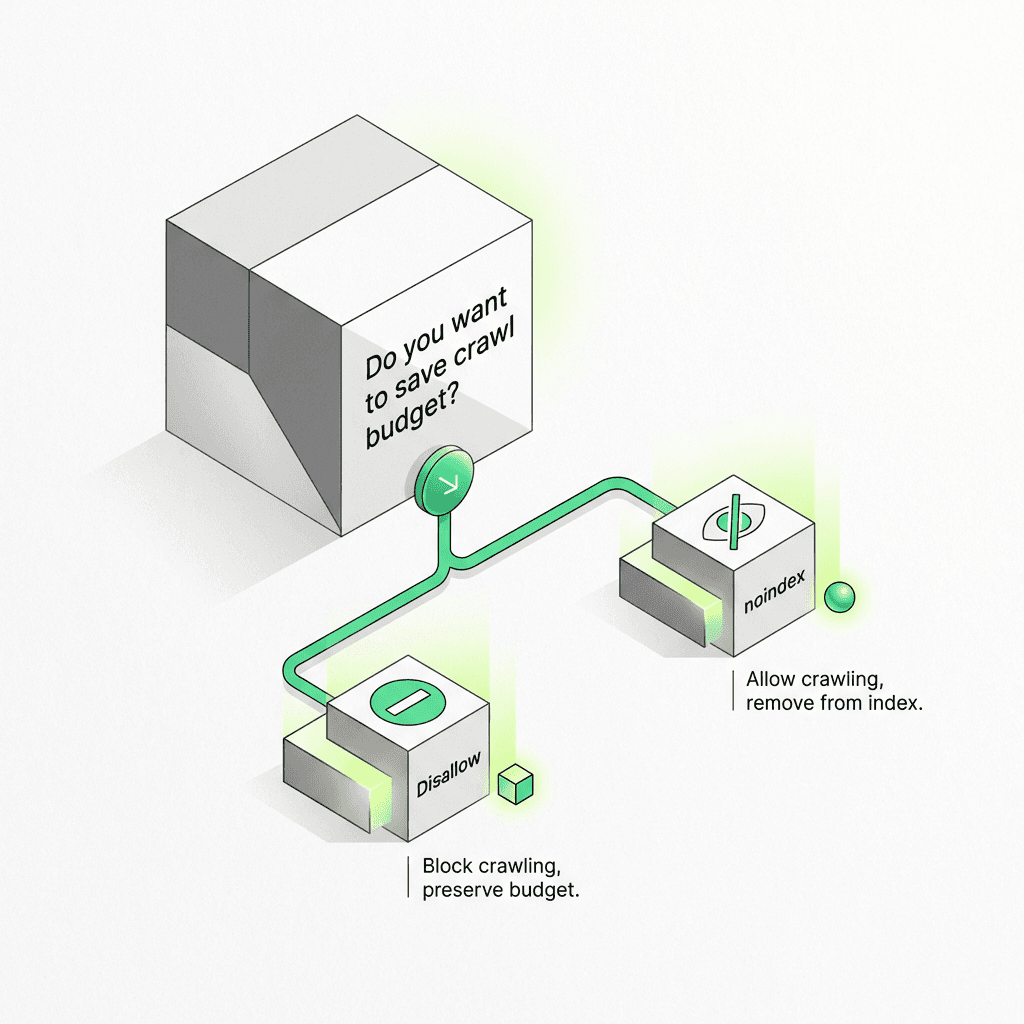
Use robots.txt Disallow When:
The page consumes crawling resources without adding value (infinite filter combinations, session-based URLs)
You want to prevent crawler load on resource-intensive pages (large PDFs, video files, dynamic exports)
The content is truly duplicative at the URL level (printer-friendly versions, mobile-specific parameters)
You're managing crawl rate for server performance
Use noindex When:
You want to block indexing but preserve link equity flow (thin content pages that link to important pages)
The page has unique content but shouldn't appear in search results (thank-you pages, internal search results)
You need granular control per page (can't be done with pattern-based rules)
You want the page indexed by some search engines but not others (``)
The Dangerous Middle Ground
Never use a disallow directive on a page that's already indexed if your goal is to remove it from search results. The page will remain indexed with a generic snippet because Google can't re-crawl it to see your noindex directive.
The fix: Temporarily remove the block, add a noindex meta tag to the page, let Googlebot re-crawl and drop the page from the index, then optionally add back the block if you also want to prevent crawling.
Implementing noindex: Three Methods
Let's look at practical implementation for each noindex method, with use cases for when each makes sense.
Method 1: HTML Meta Tag
Best for: Individual pages where you control the HTML template. The `follow` parameter tells bots to still follow links on the page, preserving link equity flow to other pages on your website.
Method 2: X-Robots-Tag HTTP Header
Best for: Non-HTML resources like PDFs, images, or API responses. You can also use this for programmatic control at the server level without modifying HTML, a use case often managed by ai tools for content marketing at scale.
Method 3: Conditional Bot-Specific Tags
Best for: Situations where you want different indexing behavior across multiple search engines. Rare but useful for testing or market-specific strategies. These specific tags allow you to implement different rules for different bots.
Crawl Budget Control: Beyond Basic Disallow
For large sites (10,000+ pages), crawl budget becomes a strategic concern. Google allocates a limited crawl capacity to your site based on server health and perceived site quality. Wasting it on low-value pages means important updates get discovered slower.
Advanced Patterns for Crawl Efficiency
Monitoring Crawl Budget in Google Search Console
Navigate to Settings > Crawl Stats in Google Search Console to see:
Total crawl requests: How many URLs Googlebot tried to fetch
File size distribution: Whether large resources are consuming budget
Response time: Server performance impact on crawl rate
Host status: Availability and errors that reduce crawl efficiency
If you see Google wasting crawl budget on parameter URLs or filters, tighten your robots.txt rules and consider implementing canonical tags or URL parameter handling. For teams using ai productivity tools for marketing, integrating these insights can streamline maintenance.
The AI Crawler Revolution: A New Governance Challenge
Here's where things get interesting—and where most existing guides become obsolete.
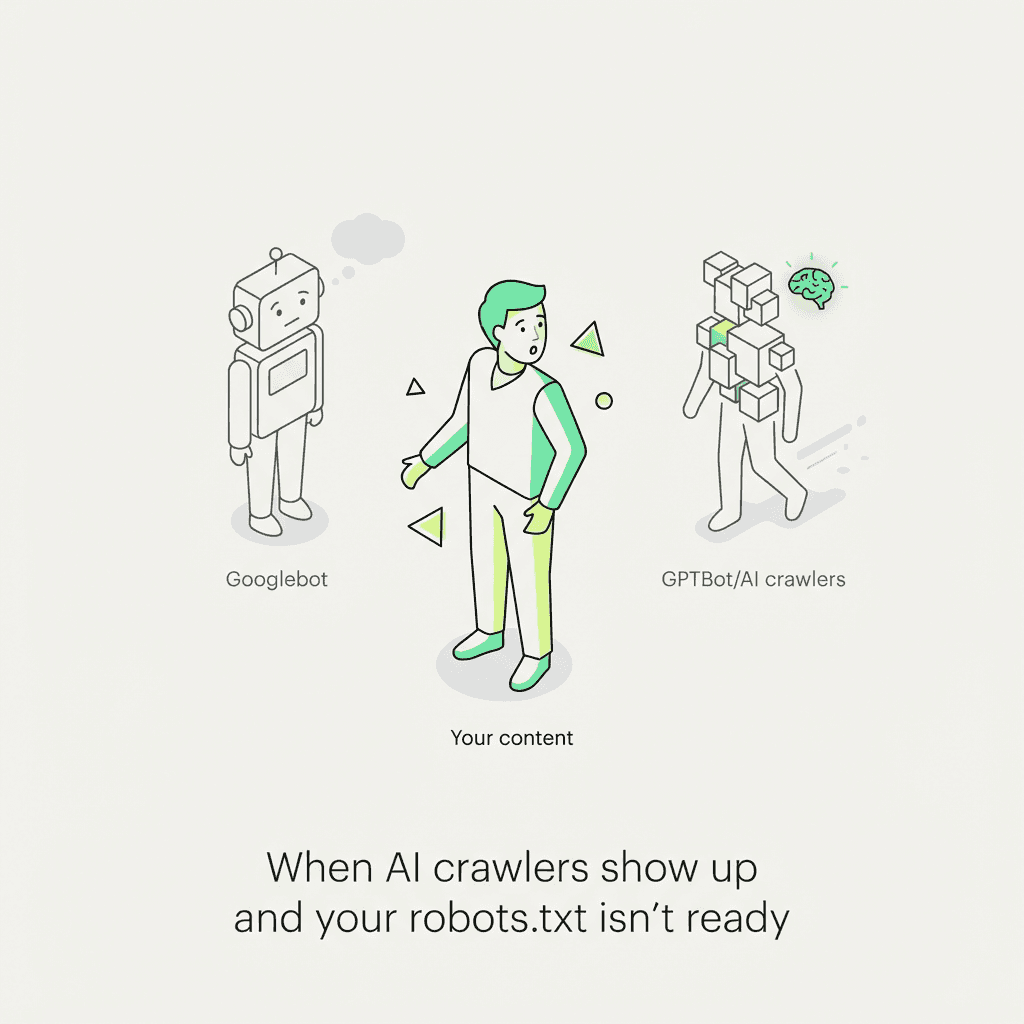
How AI Is Changing Crawler Management
Traditional search engine crawlers (Googlebot, Bingbot) have always been relatively well-behaved and documented. The modern era has introduced a new class of crawlers with different motivations:
GPTBot (OpenAI): Crawls web pages for training language models
PerplexityBot: Gathers content for answer engines
ClaudeBot (Anthropic): Collects training data for Claude models
CCBot (Common Crawl): Open dataset used by multiple companies
Omgilibot, Bytespider, and dozens more
These bots present a new strategic decision for growth teams: Do you want your content used for AI training, AI citations, or neither? AI marketing workspace platforms may soon offer built-in governance for these emerging scenarios.
The Three AI Crawler Strategies
1. Full Block (Training Opt-Out)
This prevents companies from using your content for model training. However, it may also reduce your eligibility for citations in answer engines.
2. Selective Allow (Citation Eligibility)
This allows answer engines like Perplexity to cite your best content while blocking training-focused crawlers. It's a middle-ground approach for SEO optimization.
3. Full Allow (Maximum Visibility)
Simply don't add any specific rules. Your default `User-agent: *` rules will apply. This maximizes potential citations but gives you no control over training data usage.
The Governance Gap
Most companies haven't made an explicit decision about crawler policy. Their files were written before GPTBot existed, leaving them in the "full allow" position by default—not by choice.
This is where modern growth teams need new tooling. Manually auditing files across dozens of domains, subdomains, and staging environments is tedious and error-prone. Policy decisions made in a spreadsheet don't automatically propagate to production files.
The Metaflow Agent Opportunity
This is exactly the kind of operational friction that agents can eliminate. A Metaflow pipeline step can:
Audit files across all domains and subdomains in your infrastructure
Flag missing crawler directives based on your governance policy
Generate policy-compliant rules that balance training opt-out with Answer Engine Optimization discoverability
Monitor for drift when developers deploy changes that override your crawler policy
Auto-update sitemap directives when new sitemaps are published
Rather than maintaining a spreadsheet of crawler policies and manually editing files, growth teams can codify their strategy once in natural language ("Block all training crawlers except allow Perplexity on /blog/ and /resources/"), then let the agent enforce it across their entire web presence. Using an ai agent builder or no-code ai workflow builder streamlines this process and reduces manual errors.
This is the shift from reactive troubleshooting to proactive governance—reclaiming cognitive bandwidth for strategic decisions rather than syntax debugging.
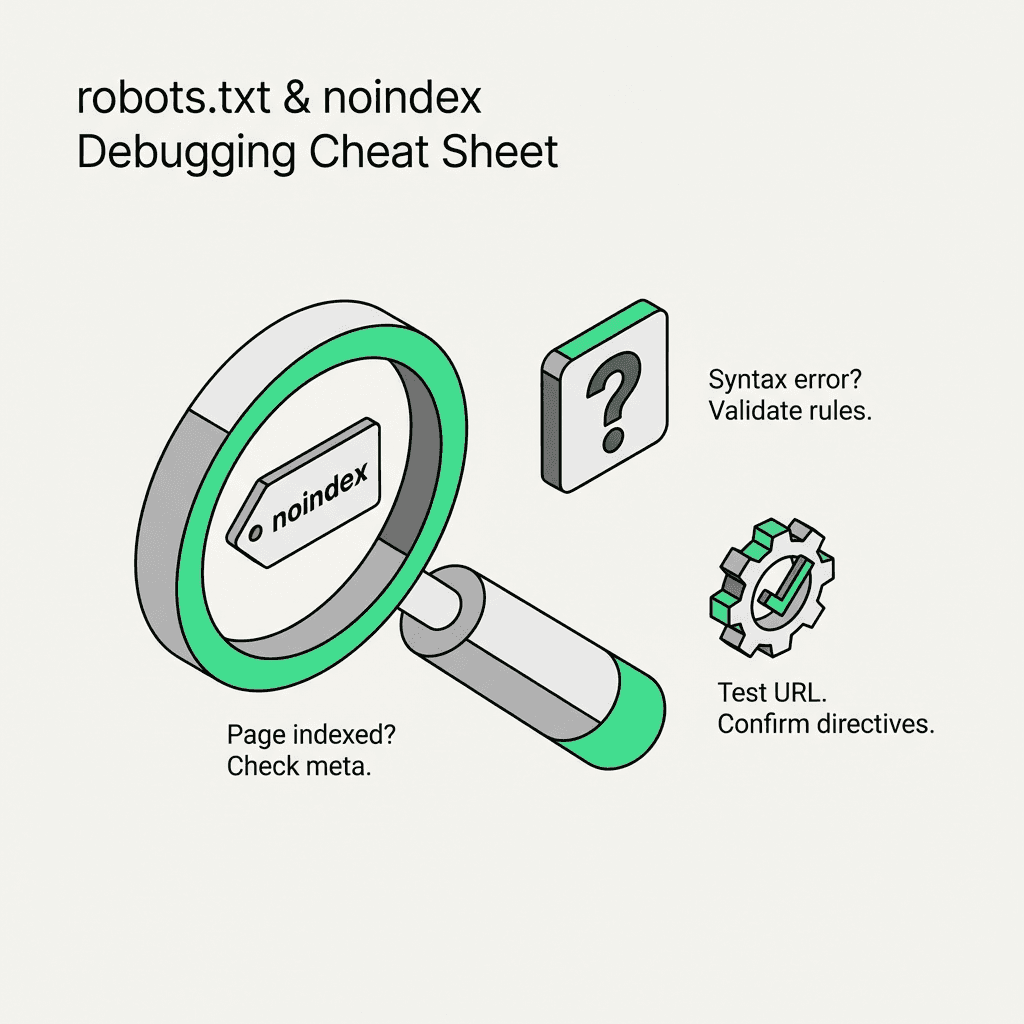
Troubleshooting Checklist: Common Issues and Fixes
Even with clear guidelines, implementations can go wrong. Here's a diagnostic checklist for the most common problems.
Issue: Page Blocked Still Appears in Search Results
Diagnosis: The page was indexed before you added the disallow rule, or it's getting indexed via external links without Google ever crawling it.
Fix:
Temporarily remove the block
Add `` to the page
Request re-crawl in Google Search Console using the URL inspection tool
Once de-indexed, optionally re-add the block
Issue: noindex Tag Not Working
Diagnosis: Check these in order:
Is the page blocked? (Google can't see your noindex tag)
Is the tag in the `` section before any JavaScript rendering?
Is there a conflicting `index` directive elsewhere in the HTML?
Are you checking too soon? (De-indexing can take days to weeks)
Fix: Use the URL inspection tool in Search Console to see exactly what Google sees. Look for "Indexing allowed? No: 'noindex' detected" confirmation.
Issue: File Not Working
Diagnosis:
Is the file at the exact root domain? (`/robots.txt`, not `/seo/robots.txt`)
Is it returning HTTP 200? (Use the tester tool in Search Console)
Are you using unsupported syntax? (Some directives like `Crawl-delay` are ignored by Googlebot)
Is there a syntax error breaking parsing? (Missing colons, wrong line breaks)
Fix: Test with the tester in Search Console, which shows exactly how Google parses your file and identifies any syntax issues.
Issue: Budget Wasted on Parameter URLs
Diagnosis: Check Crawl Stats in Search Console for patterns like `?sessionid=`, `?sort=`, `?filter=` consuming requests.
Fix: Combine three approaches:
Add disallow rules for parameter patterns
Implement canonical tags pointing to clean URLs
Configure URL parameters in Search Console (Legacy tool, but still functional)
Issue: Crawler Ignoring Instructions
Diagnosis: Some crawlers are poorly implemented or deliberately ignore directives. Check your server logs for bot user agents and their behavior.
Fix: For persistent violators:
Block at the server/firewall level by IP range or user agent
Implement rate limiting for aggressive crawlers
Return 429 (Too Many Requests) or 403 (Forbidden) responses
Tactical Implementation Guide
Let's walk through a complete implementation from scratch using WordPress or any other platform.
Step 1: Write Rules
Create or edit your file with your crawl control rules:
Step 2: Add Sitemap Directive
Include your xml sitemap directive to help search engines discover your content faster. You can list multiple sitemaps in separate lines:
Step 3: Use Robots Meta Tag for noindex
For pages you want to block from indexing, add the meta robots tag in the `` section:
Or implement via HTTP header for non-HTML resources:
Step 4: Verify in Google Search Console
Go to Google Search Console
Use the tester tool (Settings > robots.txt) to validate syntax
Use URL inspection tool to verify noindex tags are detected
Monitor Index Coverage report for unexpected exclusions
Step 5: Monitor and Iterate
Set up regular audits:
Weekly: Check Crawl Stats for budget waste
Monthly: Review Index Coverage for indexing issues
Quarterly: Audit for outdated rules or missing crawler directives
Using ai workflow automation for growth ensures that these audits and updates are both consistent and scalable, especially across multiple web properties.