





TL;DR:
Google Search Console indexing is your direct line to understanding why pages aren't appearing in search—critical as Google tightens its index and AI search gains prominence.
Key benefits include free access to Google's diagnostic tools, improved search visibility, better rankings, increased organic traffic, and the ability to track keyword performance, queries, clicks, impressions, position, and CTR through Google Analytics integration.
Common issues like "submitted but not indexed" and "discovered currently not indexed" signal quality problems; fix with better content, internal links, backlinks, and by addressing errors and warnings.
AI SEO tools and SEO automation tools transform reactive troubleshooting into proactive, agent-driven workflows that classify issues, prioritize fixes, and alert teams in real-time.
Metaflow AI's no-code agent builder unifies Search Console API monitoring, automated triage, and intelligent recommendations in a single workspace—freeing growth teams to focus on high-impact strategy instead of manual data pulls.
This comprehensive guide and tutorial provides step-by-step instructions for beginners and webmasters to set up their account, verify ownership, add properties, submit sitemaps, and troubleshoot common indexing issues.
You've published what you believe is stellar content. Days pass. Weeks go by. Yet when you search Google, your page is nowhere to be found. Sound familiar?
The frustration of invisible content is real—and it's getting worse. As Google tightens its index, favoring quality over quantity, understanding Google Search Console indexing isn't just helpful anymore. It's mission-critical. Here's why: a page that's not indexed can't rank in traditional search and can't be cited by AI-powered search engines like SearchGPT or Google's AI Overviews. You're losing on two fronts.
This comprehensive guide and tutorial will transform how you diagnose and fix indexing problems using Google Search Console. You'll learn to leverage the URL Inspection tool, interpret the performance report, decode crawl stats, and build a weekly routine that catches issues before they tank your organic traffic. More importantly, we'll explore how AI tools for digital marketing and SEO automation tools are turning reactive troubleshooting into proactive, intelligent workflows.
Meta Description: Learn how to use Google Search Console indexing reports and the URL Inspection tool to diagnose problems, prioritize fixes, and build an automated workflow that keeps your pages visible to both Google and AI search.
Why Google Search Console Indexing Matters More Than Ever
Google Search Console provides direct diagnostics from Google about how it crawls, indexes, and serves your pages. It's the only free tool where Google explicitly tells you why your content isn't appearing in search results—a critical benefit for website owners and webmasters alike.
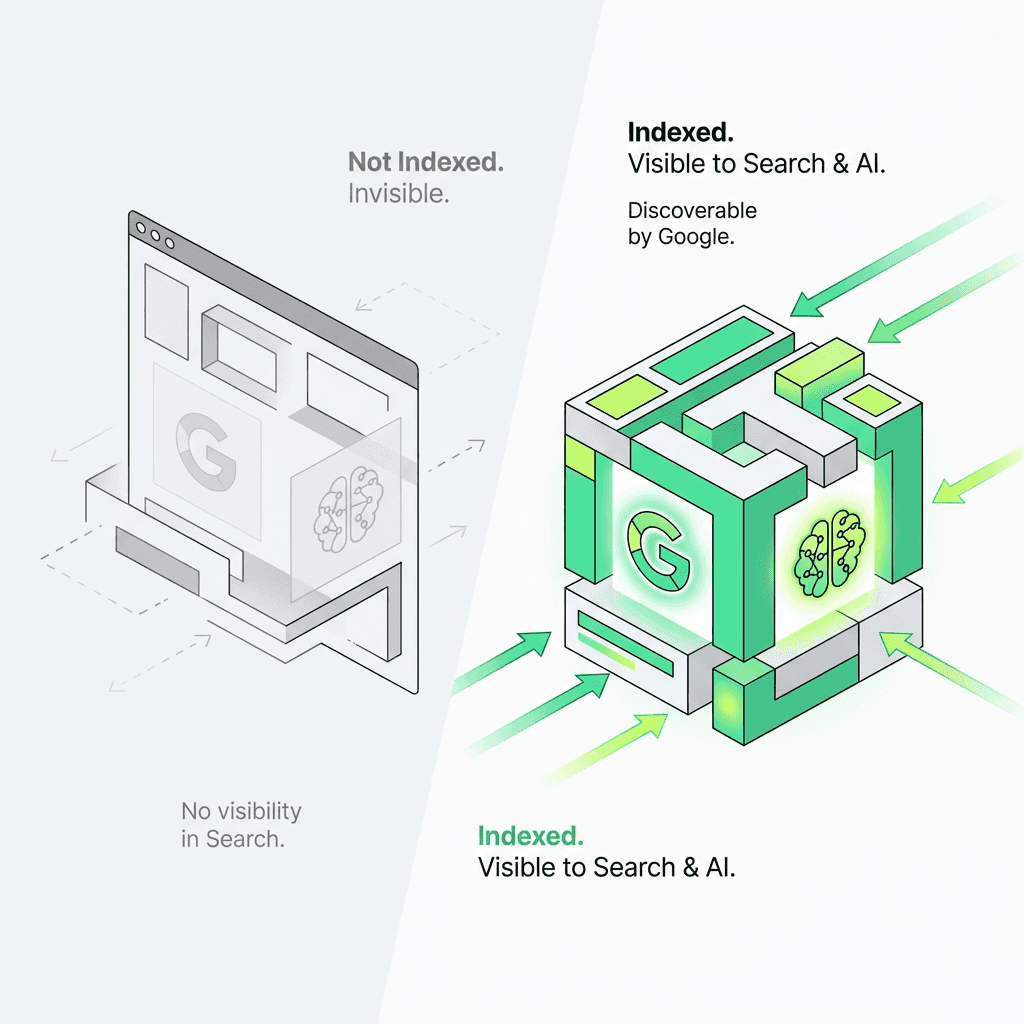
But here's what's changed: indexing issues now have dual impact. In 2026, when a page shows "submitted but not indexed" or "discovered currently not indexed" in Search Console, you're not just missing out on traditional organic traffic and search visibility. AI search systems that rely on indexed content to generate answers can't cite your expertise either.
According to recent data, Google is de-indexing low-quality pages at unprecedented rates. The company has made it clear: they'd rather maintain a smaller, higher-quality index than bloat their database with mediocre content. This means every URL you want indexed needs to earn its place through quality signals, user value, and technical excellence.
Understanding Google Search Console Reports: Your Diagnostic Arsenal
Search Console offers several reports that work together to give you a complete picture of your indexing health. This overview will help beginners and experienced users alike navigate the dashboard effectively. Let's break down the essential features and settings.
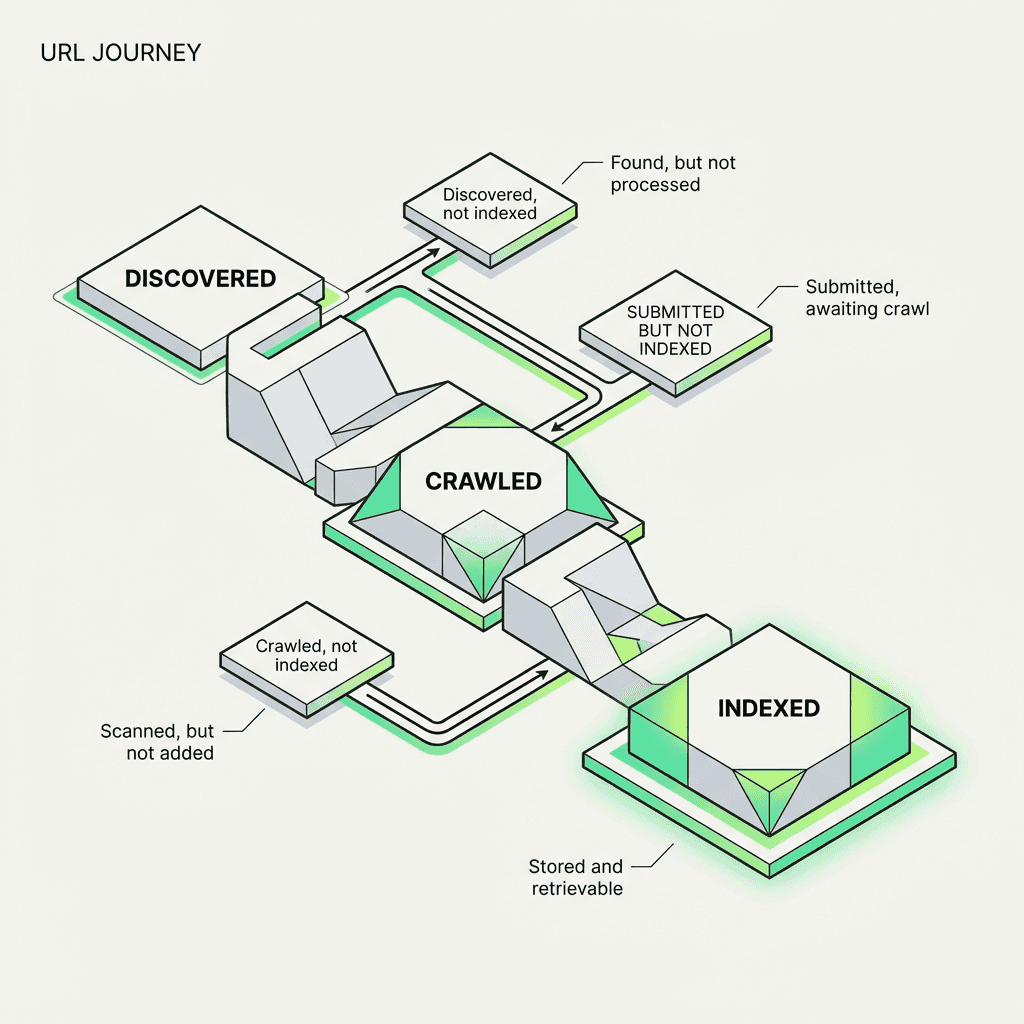
The Page Indexing Report: Your First Stop
Navigate to Indexing > Pages in Search Console. This report shows you at a glance:
How many of your website pages are indexed
Which pages are excluded and why
Trending issues over the past 90 days
You'll see statuses like:
"URL is on Google" — Your page is indexed and eligible to appear in search results
"Page with redirect" — Google followed a redirect; inspect the final destination
"Submitted URL not found (404)" — You submitted a dead link via sitemap
"Discovered - currently not indexed" — Google found your URL but chose not to index it (usually a quality signal)
"Crawled - currently not indexed" — Google crawled the page but decided it doesn't add enough value to warrant indexing
The discovered currently not indexed status is particularly frustrating for website owners. It typically means Google doesn't think your page is valuable enough compared to what's already in the index. Solutions include improving content depth, adding unique data or insights, building internal links to the page, or earning external backlinks and links from authoritative domains.
The URL Inspection Tool: Your Indexing Microscope
The URL Inspection tool is where you go for granular, page-level diagnostics. Simply paste any URL from your property into the search bar at the top of Search Console to access this powerful feature.
You'll get two views:
Indexed URL status — What Google currently has in its index
Live test — What Google sees right now when it crawls the page
This dual view is powerful. If you've recently fixed an issue (say, removed a `noindex` tag or fixed a server error), the indexed version might still show the old problem. Run the live test to confirm your fix works, then request indexing to expedite the update and submission process.
The URL Inspection tool reveals:
Crawl information — When Google last crawled, the user-agent used, and crawl status
Indexability — Whether the page can be indexed and the canonical URL Google selected
Coverage — Specific errors, warnings, or exclusions
Enhancements — Structured data validation, AMP status, mobile usability
Pro tip: Use the "View crawled page" option to see the actual HTML Google received and how it rendered the page. This helps diagnose JavaScript rendering issues or cloaking problems. Marketers leveraging ai workflows for growth can use these granular insights to inform automated troubleshooting routines.
Setting Up Your Account: A Step-by-Step Guide for Beginners
Before diving into advanced diagnostics, ensure your Google Search Console account is properly configured. Here's a quick setup tutorial:
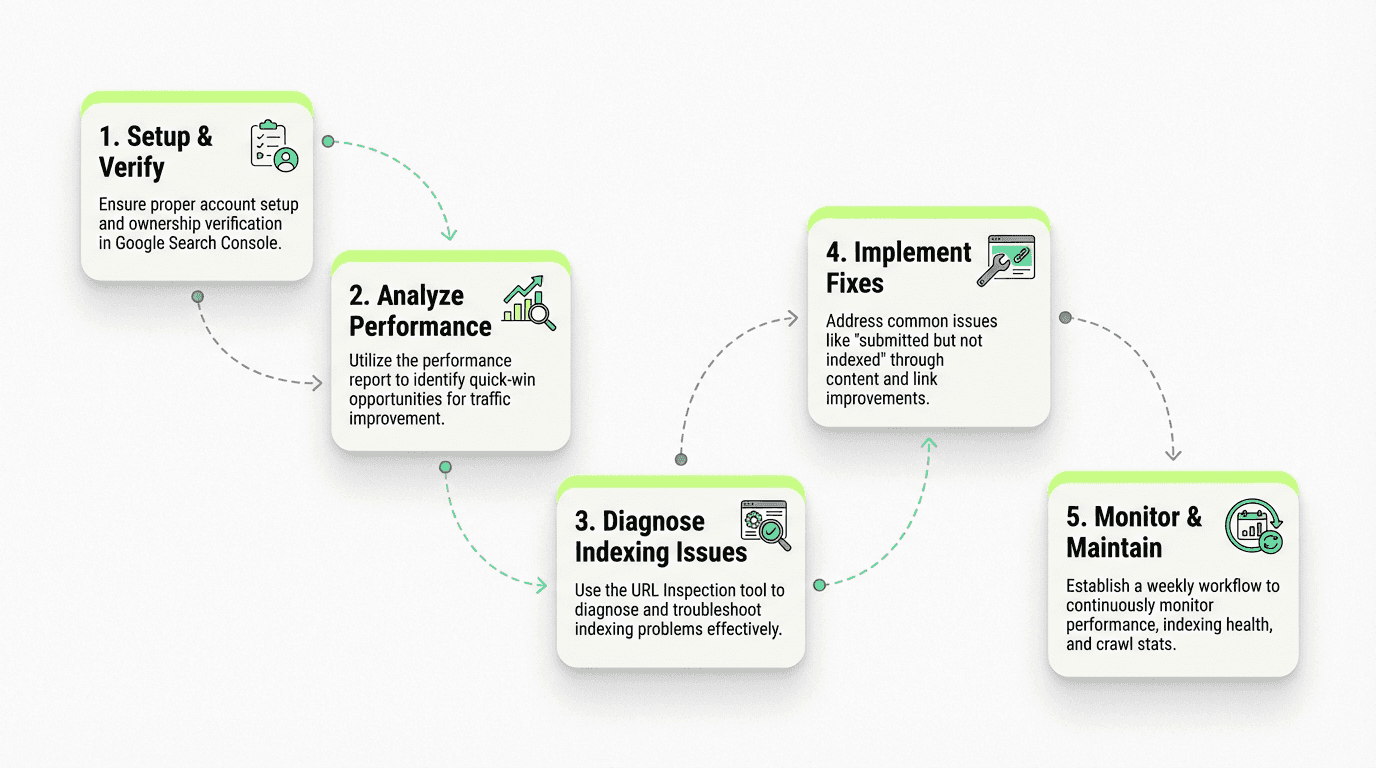
Step 1: Add Your Property Navigate to the Search Console homepage and click "Add property." You can add either a domain property (covers all subdomains and protocols) or a URL prefix property (specific protocol and subdomain).
Step 2: Verify Ownership Google requires verification to confirm you own the website. Choose from multiple verification methods:
HTML file upload
HTML tag in your site's `` section
Google Analytics tracking code
Google Tag Manager
Domain name provider (DNS verification)
Step 3: Grant Access to Users After verification, add team members by navigating to Settings > Users and permissions. Assign appropriate roles (Owner, Full User, or Restricted User) to control access levels.
Step 4: Submit Your Sitemap Go to Indexing > Sitemaps and submit your XML sitemap URL. This helps Google discover and crawl your pages more efficiently.
The Performance Report: Finding Hidden Opportunities
While the performance report is often used to admire vanity metrics (clicks, impressions), its real power lies in identifying pages that are almost ranking well. This report integrates seamlessly with Google Analytics to provide a complete picture of your website traffic and search query performance.

Here's a tactical workflow:
Go to Performance > Search results
Enable "Average CTR" and "Average position" metrics
Click the "Queries" tab
Filter for Position: 8 to 20
Sort by impressions (descending)
This reveals keywords and queries where you're on page two of Google—getting impressions but minimal clicks. These are your quick-win opportunities. A small boost in rankings (via better internal links, content refreshes, or earning a few backlinks) can dramatically increase traffic and improve your SERP position.
For example, if you rank #11 for a keyword with 10,000 monthly searches, you might get 50 clicks per month. Move to position #4, and that jumps to 600+ clicks—a 12x increase in organic traffic and CTR.
Cross-reference these opportunities with the sitemap report to ensure those URLs are properly submitted and crawlable. Integrating insights from a marketing automation platform can streamline this process by tracking and prioritizing keyword movements and rankings.
Crawl Stats Report: Understanding Googlebot Behavior
The crawl stats report (under Settings > Crawl stats) shows how Googlebot interacts with your site over time:
Crawl requests per day — How often Google visits
Kilobytes downloaded per day — Bandwidth used
Average response time — How fast your server responds
Crawl request breakdown — By response code, file type, purpose, and Googlebot type
If you notice a sudden drop in crawl requests, it could signal:
Server errors blocking Googlebot
A manual action or security issue
Decreased site freshness (you're not publishing new content)
Crawl budget issues (Google doesn't think your site warrants frequent crawling)
Conversely, a spike might indicate:
You submitted a large sitemap
Google discovered many new pages
You're being crawled by fake Googlebots (verify via reverse DNS lookup)
For large sites, crawl budget optimization becomes crucial. Google won't waste resources crawling low-value pages. Improve your crawl efficiency by:
Fixing broken internal links and external links
Removing or noindexing thin content
Optimizing site speed and performance
Using `robots.txt` strategically to block unimportant sections
Teams using ai workflow automation for growth can automate monitoring of crawl stats anomalies, enabling faster response to technical issues and crawling problems.
Rich Results Report: Maximizing SERP Real Estate
If you're using structured data and schema markup (and you should be), the rich results report shows whether your markup is eligible for enhanced search features like:
Recipe cards
Product reviews
FAQ accordions
How-to steps
Job postings
Event listings
Rich snippets
Navigate to Enhancements in the sidebar to see reports for each structured data type you've implemented.
Common issues include:
Missing required fields — Your markup lacks a critical property
Invalid values — The data doesn't match the expected format
Mismatched content — The structured data doesn't reflect what's visible on the page (Google calls this "deceptive structured data")
Use the URL Inspection tool to test individual pages. If the live test shows valid structured data but the indexed version shows errors, request re-indexing.
Pro tip: Even if your markup is valid, Google doesn't guarantee rich results will appear. Eligibility ≠ visibility. Google uses quality signals and user behavior to decide which results get enhanced treatment. Utilizing ai powered marketing tools can help you track structured data eligibility and changes efficiently.
Your Weekly Google Search Console Workflow
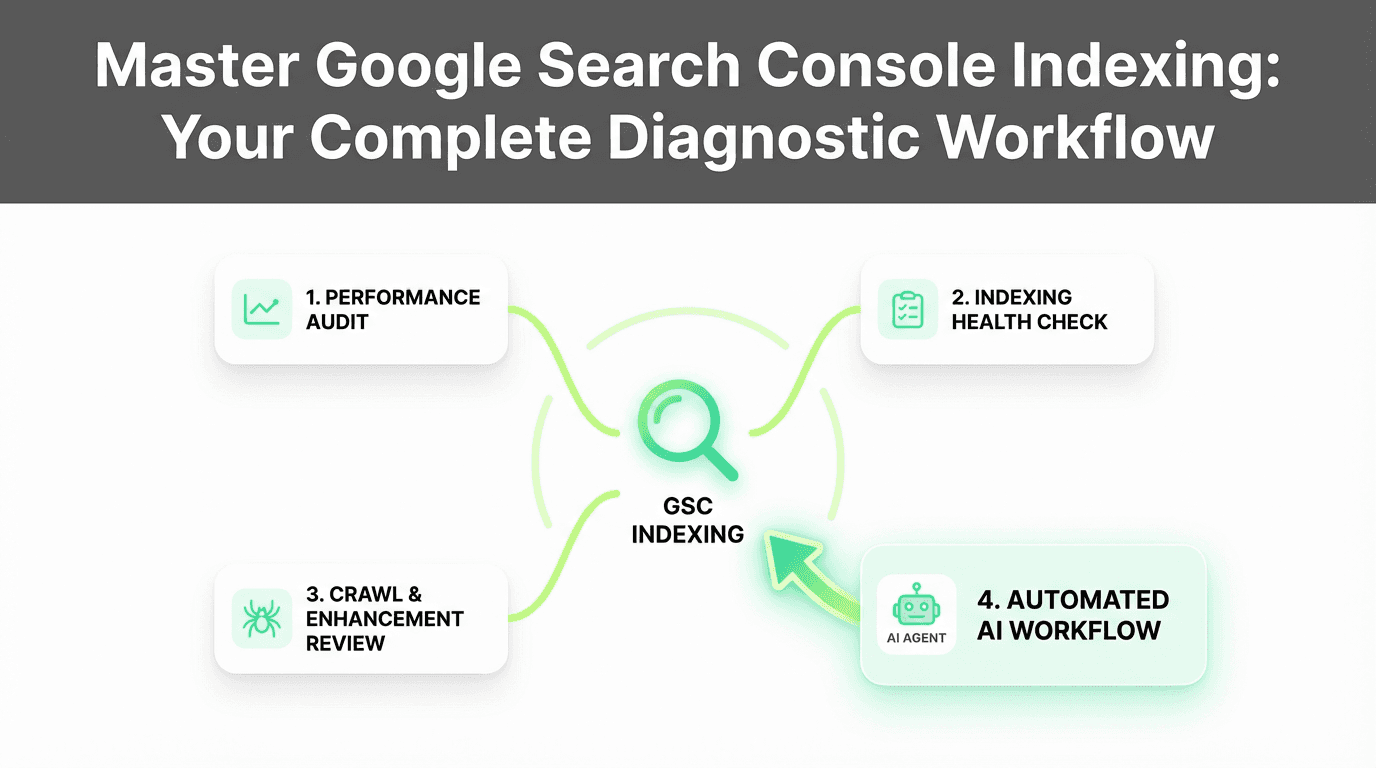
Consistency beats sporadic heroics. Here's a sustainable weekly routine that takes just 50 minutes:
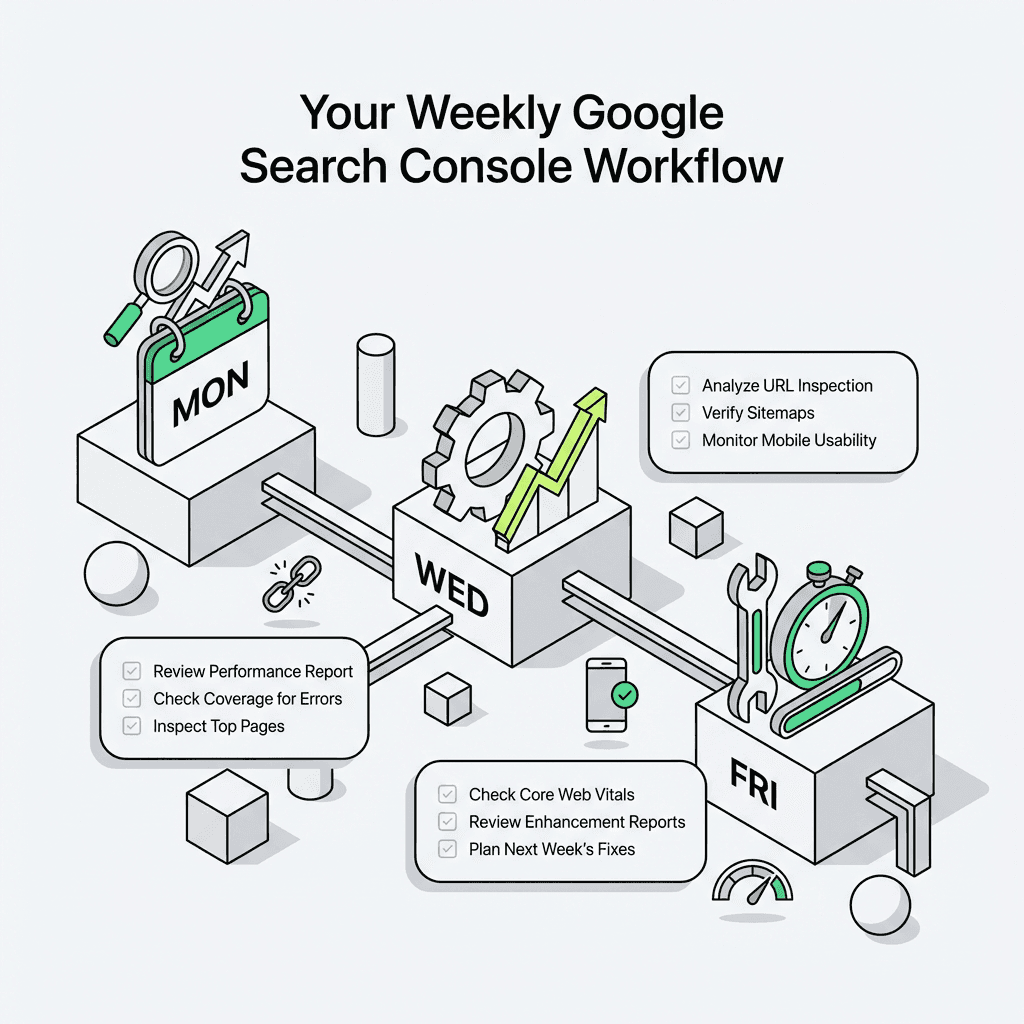
Monday: Performance Audit (15 minutes)
Check the **performance report** for sudden traffic drops
Filter by "Last 7 days" vs. "Previous period"
Investigate any pages with >20% traffic decline
Review keyword rankings and query performance
Use the URL Inspection tool on affected URLs
Wednesday: Indexing Health Check (20 minutes)
Review the **Page indexing report** for new errors and warnings
Inspect 3-5 URLs with "**submitted but not indexed**" status
Run live tests to verify recent fixes
Request indexing for high-priority pages
Check coverage reports for patterns
Friday: Crawl & Enhancement Review (15 minutes)
Check **crawl stats** for anomalies
Review **rich results report** for new errors
Verify **sitemap report** shows successful processing and submission
Assess mobile usability issues
Document recurring issues for deeper investigation
This 50-minute weekly investment catches problems early, before they compound into traffic disasters. Automating these steps with an ai marketing workspace can further improve your team's efficiency and troubleshooting speed.
Common Google Search Console Indexing Issues (And How to Fix Them)
Issue 1: "Submitted but Not Indexed"
What it means: You submitted the URL via sitemap or sitemaps, but Google chose not to index it.
Common causes:
Low-quality or thin content
Duplicate content (Google indexed a similar page instead)
Page is too new (Google is still evaluating)
Crawl budget exhaustion (common on large sites)
Fixes:
Improve content depth and uniqueness
Add internal links from high-authority pages
Earn external backlinks
Wait 2-4 weeks and re-check (new pages take time)
Verify your robots.txt file isn't blocking access
Issue 2: "Discovered - Currently Not Indexed"
What it means: Google found your URL (via internal links or external sources) but decided not to index it—often a quality or penalty signal.
Common causes:
Content doesn't add value vs. what's already indexed
Page is orphaned (few or no internal links)
Technical issues (slow load time, poor mobile usability, Core Web Vitals failures)
Fixes:
Consolidate thin content into comprehensive resources
Build a strong internal linking structure
Improve Core Web Vitals and speed
Add unique data, original research, or expert insights
Check for manual actions or security issues
Issue 3: "Crawled - Currently Not Indexed"
What it means: Google successfully crawled the page but chose not to index it—a strong quality signal.
Fixes:
Conduct a content audit: Is this page worth indexing?
If yes, substantially improve the content
If no, consider noindexing or removing it
Reduce duplicate or near-duplicate content
Review canonical tags for proper implementation
Issue 4: "Server Error (5xx)"
What it means: Your server returned an error when Google tried to crawl.
Fixes:
Check server logs for the exact timestamp
Investigate server capacity and uptime
Review CDN or firewall rules that might block Googlebot
Test with "Inspect URL" live test
Fix any underlying error causing server instability
How AI and Automation Are Changing Search Console Workflows
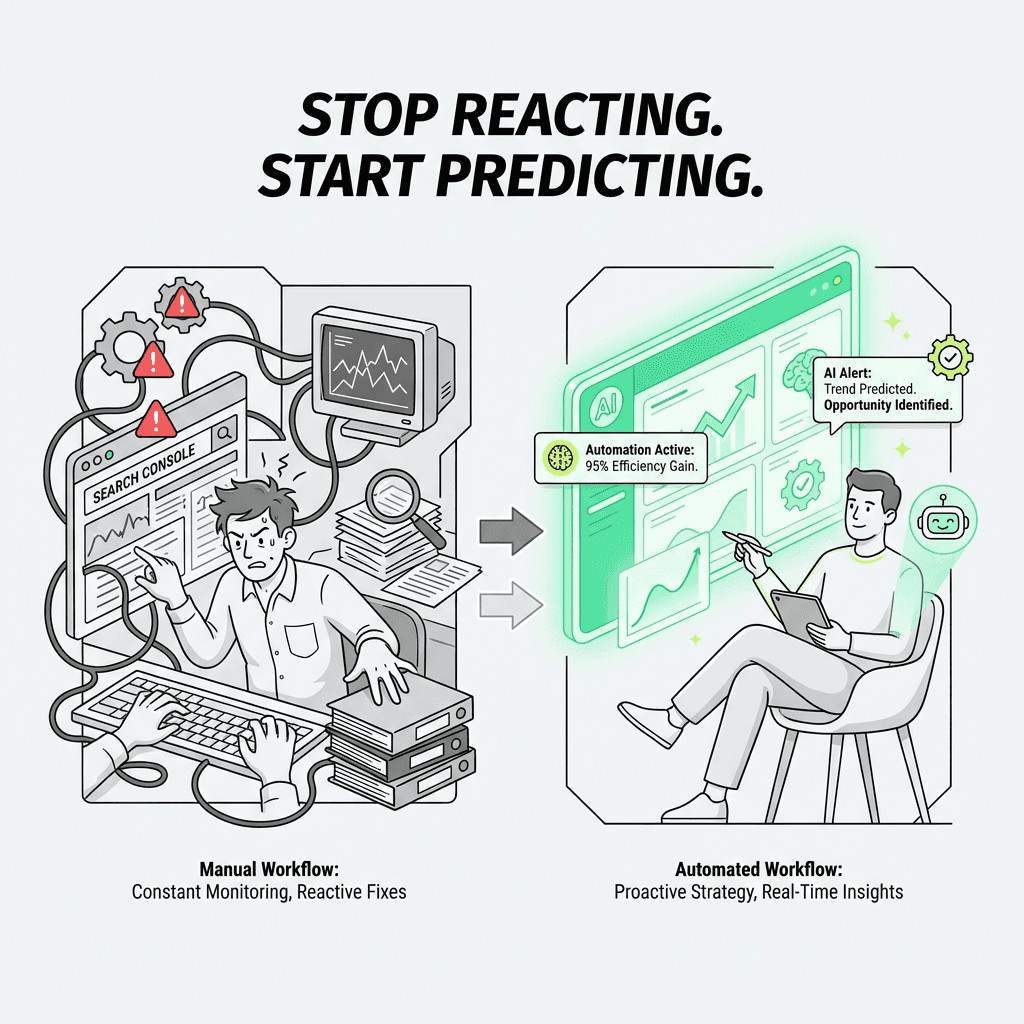
Here's the problem with traditional Search Console workflows: they're reactive, manual, and time-consuming. You log in once a week (if you're disciplined), spot an issue, investigate, fix it, and hope you caught it in time.
But what if you could flip that model?
The AI SEO Tools Revolution
Modern ai agents for marketing can connect to the Search Console API and run continuous monitoring. Instead of weekly check-ins, you get:
Real-time alerts when indexing issues, errors, or warnings spike
Automated classification of "not indexed" reasons
Traffic potential scoring to prioritize which pages to fix first
Pattern recognition that spots systemic issues (e.g., all blog posts from a specific category are excluded)
This is where ai marketing automation platform features shine. Rather than manually inspecting URLs one by one, an AI agent can:
Pull all "not indexed" URLs via API
Classify them by reason (quality, duplicate, technical, crawl budget)
Cross-reference with traffic potential (search volume for target keywords)
Generate fix recommendations based on historical data
Create prioritized task lists for your team
The Metaflow Agent Opportunity
Traditional SEO automation platforms often fragment your workflow across multiple tools—one for data pulls, another for analysis, a third for task management. This fragmentation kills momentum.
Metaflow AI offers a different approach: a unified, natural language no-code ai agent builder that lets growth teams design custom workflows without code. Imagine building an agent that:
Monitors your Search Console API daily
Identifies indexing drops before they impact traffic
Automatically generates Slack alerts with context and fix suggestions
Runs cross-checks against your CMS to verify technical implementation
Tracks fix velocity and re-indexing success rates
Because Metaflow is a no-code ai workflow builder, you don't need engineering resources to deploy this. Growth marketers can prototype, test, and deploy intelligent workflows in hours—not sprints.
The platform brings ideation and execution into a single workspace. You're not juggling API connectors, scattered prompts, and brittle Zapier chains. You're building durable, intelligent agents that learn from your data and adapt to your specific indexing patterns.
This isn't about replacing human judgment. It's about reclaiming cognitive bandwidth. Instead of spending hours manually triaging indexing issues, your team focuses on high-impact work: creating better content, building relationships, and crafting strategies that move the needle.
Advanced Tactics: Going Beyond the Basics
Leverage the Search Console API
For teams managing multiple sites or large-scale properties, the Search Console API unlocks programmatic access to all your data. You can:
Build custom dashboards combining Search Console data with Google Analytics, CRM data, and revenue metrics
Automate reporting for stakeholders
Run bulk URL inspections
Monitor indexing status across thousands of pages
Python libraries like `google-auth` and `google-api-python-client` make API integration straightforward. Integrating these with an ai workflow builder can streamline reporting and automation at scale.
Use URL Parameters Wisely
Search Console's URL Inspection tool respects URL parameters. If you're testing how Google sees a specific variant (e.g., `?utm_source=email`), inspect that exact URL. Google may treat it differently than the canonical version, affecting how it's indexed.
Monitor International Targeting and Domain Properties
If you run a multi-language or multi-region site, use Search Console's International Targeting report (under Legacy tools) to verify:
Hreflang implementation
Geographic targeting settings
Language/region indexing distribution
Misconfigured hreflang can cause indexing chaos, with Google indexing the wrong language version for specific regions. Domain properties make it easier to manage multiple subdomains and protocols from a single dashboard.
Track Manual Actions Proactively
While not directly an indexing report, the Manual Actions report (under Security & Manual Actions) can explain sudden de-indexing. If you receive a manual action or penalty, some or all of your pages may be removed from the index until you fix the issue and request reconsideration. This is critical for maintaining your website's search visibility.
Optimize for Core Web Vitals
Google's Core Web Vitals (part of page experience signals) directly impact indexing priority and rankings. The Core Web Vitals report in Search Console shows:
Largest Contentful Paint (LCP) — Loading performance
First Input Delay (FID) — Interactivity
Cumulative Layout Shift (CLS) — Visual stability
Poor Vitals scores can lead to crawling deprioritization and indexing delays. Use the report to identify problem URLs and prioritize speed and performance improvements.
Manage Backlinks and Disavow Toxic Links
The Links report (under Links in the sidebar) shows your backlinks profile:
Top linking sites
Top linking text
Top linked pages
Monitor this regularly to identify:
New backlinks (potential ranking boost)
Lost backlinks (potential ranking drop)
Spammy or toxic backlinks (use the disavow tool if necessary)
If you've been hit by negative SEO or acquired a domain with a questionable link profile, use Google's Disavow Links tool to tell Google which backlinks to ignore.
FAQs
What is Google Search Console indexing?
Google Search Console indexing is the process by which Google discovers, crawls, and adds your web pages to its search index. The Google Search Console platform provides free diagnostic tools that show you exactly which pages are indexed, which are excluded, and why—giving you direct insight into your site's visibility in both traditional search results and AI-powered search engines like SearchGPT and Google's AI Overviews.
How do I verify my website in Google Search Console?
To verify ownership in Google Search Console, first add your property (domain or URL prefix) from the Search Console homepage. Then choose from five verification methods: upload an HTML file to your server, add an HTML meta tag to your site's head section, use your existing Google Analytics tracking code, verify through Google Tag Manager, or complete DNS verification through your domain name provider. Once verified, you can submit sitemaps and access all diagnostic features.
What does "discovered currently not indexed" mean in Search Console?
The "discovered currently not indexed" status means Google found your URL through internal links or external sources but decided not to add it to the index—typically a quality signal. This indicates Google doesn't believe your page adds sufficient value compared to what's already indexed. Fix this by improving content depth with unique data or insights, building stronger internal links to the page, earning authoritative backlinks, and ensuring excellent Core Web Vitals and mobile usability.
What's the difference between "submitted but not indexed" and "crawled currently not indexed"?
"Submitted but not indexed" means you submitted the URL via sitemap or sitemaps, but Google chose not to index it—often due to low-quality content, duplicate content, or crawl budget issues. "Crawled currently not indexed" is more serious: Google successfully crawled the page but actively decided against indexing it, sending a strong quality signal. The latter requires substantial content improvement or consideration of noindexing or removing the page entirely.
How do I use the URL Inspection tool effectively?
The URL Inspection tool provides page-level diagnostics by showing two views: the indexed URL status (what Google currently has in its index) and the live test (what Google sees right now when crawling). Paste any URL from your property into the search bar at the top of Search Console. Use "View crawled page" to see the actual HTML Google received and how it rendered, which helps diagnose JavaScript rendering issues. After fixing problems like noindex tags or server errors, run the live test to confirm fixes work, then request indexing.
How can I improve my Google Search Console indexing for better rankings?
Improve indexing by regularly monitoring the Page Indexing report under Indexing > Pages, fixing errors and warnings promptly, and submitting an XML sitemap. Address common issues by enhancing content quality and uniqueness, building strong internal linking structures, earning backlinks from authoritative domains, optimizing Core Web Vitals and site speed, and ensuring mobile usability. Use the Performance report to identify pages ranking positions 8-20 that need small boosts, and maintain a weekly workflow checking performance, indexing health, and crawl stats.
What is crawl budget and why does it matter for indexing?
Crawl budget refers to how many pages Google will crawl on your site within a given timeframe. Google won't waste resources crawling low-value pages, making crawl budget optimization crucial for large websites. Improve crawl efficiency by fixing broken internal links and external links, removing or noindexing thin content, optimizing site speed and performance, and using robots.txt strategically to block unimportant sections. Monitor the Crawl Stats report under Settings to track crawl requests per day, response time, and crawl request breakdown by response code.
How do AI SEO tools automate Google Search Console workflows?
AI SEO tools and SEO automation tools connect to the Search Console API for continuous monitoring instead of manual weekly check-ins. Modern AI agents for marketing provide real-time alerts when indexing issues spike, automated classification of "not indexed" reasons, traffic potential scoring to prioritize fixes, and pattern recognition for systemic issues. Platforms like Metaflow AI offer no-code agent builders that unify Search Console API monitoring, automated triage, and intelligent recommendations in a single workspace—transforming reactive troubleshooting into proactive, agent-driven workflows.
What should I check in the Performance report to increase organic traffic?
In the Performance report under Search results, enable "Average CTR" and "Average position" metrics, then filter the Queries tab for positions 8-20 and sort by impressions descending. This reveals keywords where you're on page two of Google—getting impressions but minimal clicks. These quick-win opportunities can dramatically increase traffic with small ranking improvements through better internal links, content refreshes, or earning backlinks. Cross-reference with the sitemap report to ensure URLs are properly submitted and integrate with Google Analytics for complete traffic analysis.
How do I fix server errors and crawling problems in Search Console?
When you see "Server Error (5xx)" status, check your server logs for the exact timestamp Google attempted to crawl, investigate server capacity and uptime issues, and review CDN or firewall rules that might block Googlebot. Use the URL Inspection tool's live test feature to verify fixes work. For ongoing crawl problems, monitor the Crawl Stats report for drops in crawl requests per day, spikes in average response time, or unusual crawl request breakdowns—all indicators of technical issues preventing proper indexing.
Why is structured data important for Google Search Console indexing?
Structured data and schema markup make your pages eligible for rich results like recipe cards, product reviews, FAQ accordions, and how-to steps—maximizing SERP real estate and visibility. Use the Rich Results report under Enhancements to verify your markup is valid and check for missing required fields, invalid values, or mismatched content. Even with valid markup, Google uses quality signals and user behavior to decide which results get enhanced treatment, so eligibility doesn't guarantee visibility. The URL Inspection tool can test individual pages for structured data validation.
How often should I monitor Google Search Console for my website?
Maintain a sustainable weekly workflow: spend 15 minutes Monday checking the Performance report for traffic drops and reviewing queries and clicks; 20 minutes Wednesday reviewing the Page Indexing report for errors, inspecting "submitted but not indexed" URLs, and requesting indexing for priority pages; and 15 minutes Friday checking crawl stats, rich results, sitemap processing, and mobile usability. This 50-minute weekly investment catches problems early before they impact rankings and organic traffic, though AI workflow automation can enable real-time monitoring for faster response to issues.